ip
Eve User Guide
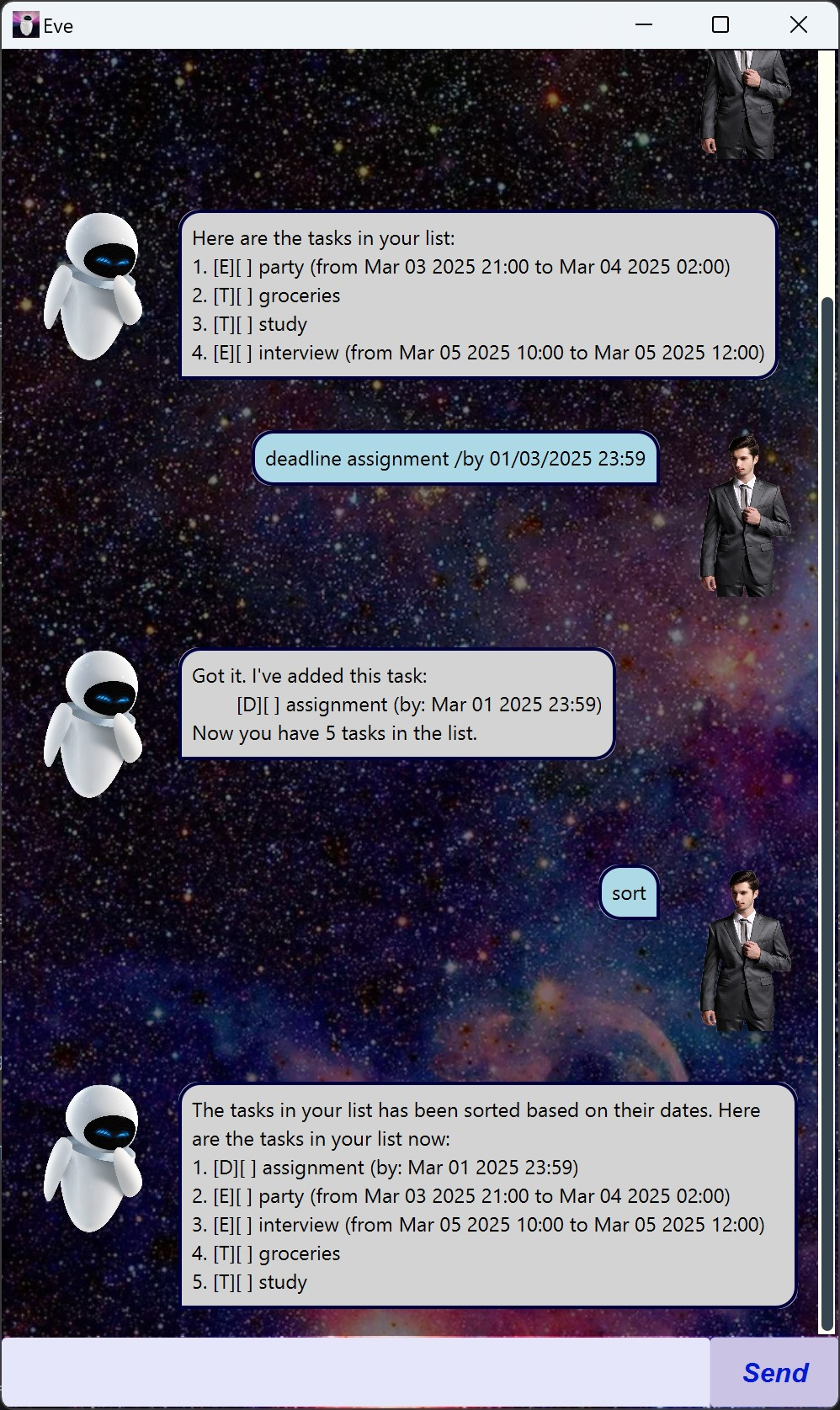
Eve is a personal assistant that frees your mind of having to remember things you need to do. It’s:
- Text-based
- Easy to learn
FASTSUPER FAST to use
Quick Start
- Ensure you have Java 17 or above installed on your computer.
- Download the latest Meep.jar file from the releases page.
- Double-click the downloaded Meep.jar file to launch the application. If that does not work, open a terminal and run
java -jar Meep.jar.
Features
Adding todo task
To add a simple todo task, use the todo command followed by the task description.
Example: todo groceries
Eve will confirm the task is added with a message:
Got it. I've added this task:
    [T][ ] groceries
Now you have 1 tasks in the list.
Adding deadline
To add a deadline, use the deadline command followed by the task description and
due date.
Example: deadline assignment /by 23/01/2025 23:59
Eve will confirm the task is added with a message:
Got it. I've added this task:
    [T][ ] assignment (by: Jan 23 2025 23:59)
Now you have 1 tasks in the list.
Adding event
To add an event, use the event command followed by the task description as well
as start and end times.
Example: event party /from 23/01/2025 21:00 /to 23/01/2025 23:30
Eve will confirm the task is added with a message:
Got it. I've added this task:
    [T][ ] party (from Jan 23 2025 21:00 to Jan 23 2025 23:30)
Now you have 1 tasks in the list.
Delete task
To delete a task from the task list, use the delete command followed by the task number.
Example: delete 1
Find tasks
To find tasks with matching description, use the find command followed by the
description to look for.
Example: find study
View all tasks
To view all tasks saved in task list, use the list command.
Example: list
Mark task as done
To mark a task as done, use the mark command.
Example: mark 1
Unmark task
To unmark a task as not done, use the unmark command.
Example: unmark 1
Exit program
To end the interaction with Eve, use the bye command followed by close command.